Design shots with text
Describe an action with framing, camera position and simple movement; validate one short shot first.

Seedance 2.0
Explore Seedance 2.0 (also written Seedance2.0) and the variants currently available in Eluai. Create from text or connect a reference image, and check the full model name, settings and estimated credits before submitting.
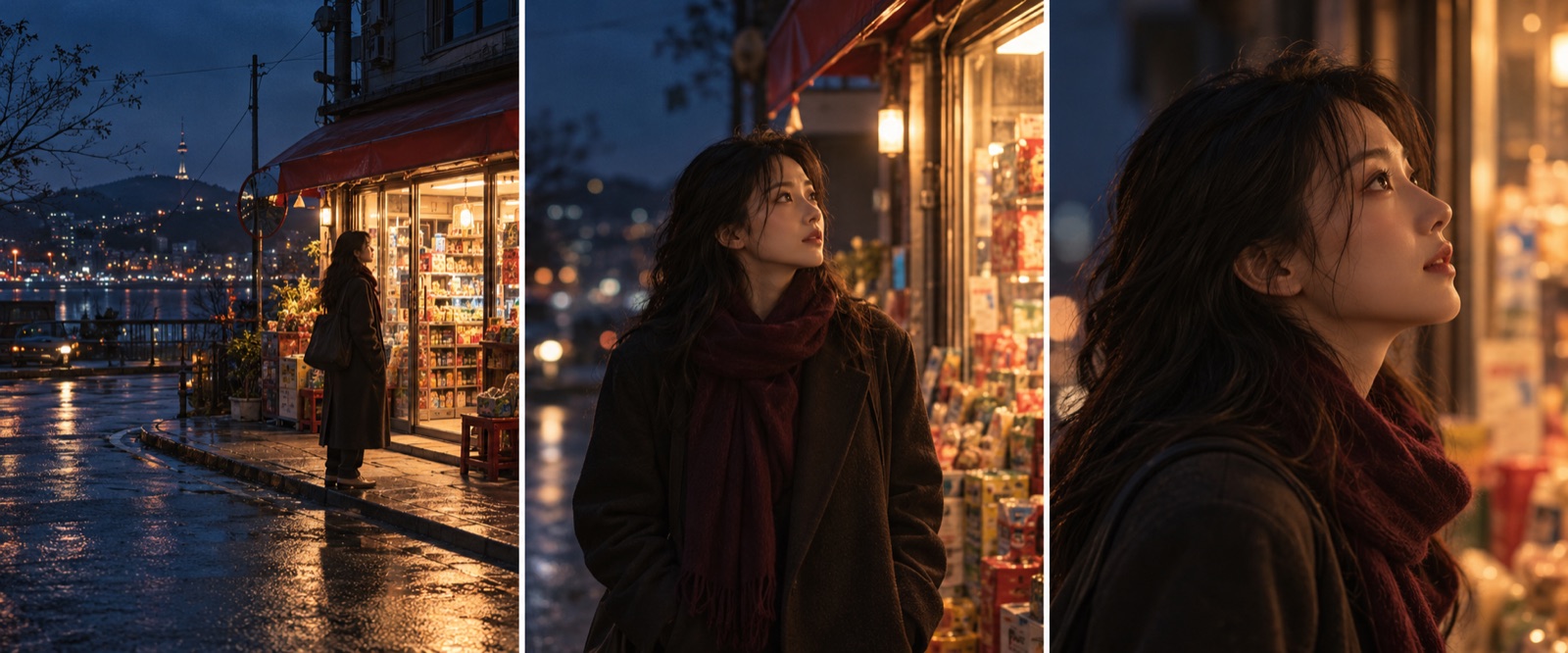
Describe an action with framing, camera position and simple movement; validate one short shot first.
Connect an approved image to a supported image-to-video operation and specify what should remain.
Standard, Mini and Fast are separate entries; inspect their current names, options and costs for your task.
State who does what and where; avoid packing too many actions into a short shot.
Distinguish the current Seedance 2.0, Mini and Fast entries in the catalogue or canvas.
Check supported references, frame, duration, resolution and audio options for the selected operation.
Use the pre-submission estimate; after completion, inspect subject details and motion continuity.
These prompts are examples. The images are AI-generated illustrations, not customer case studies; results depend on the model, references and settings.
At dusk, a person in a dark coat walks toward a corner bookshop; medium shot, slow camera push in, warm window light reflected on wet pavement.
Use the approved window scene as reference: the person gently turns, a breeze moves the curtain, and the camera stays still; retain clothing, hair and position.
Model and routing configurations change; use the creation interface for supported combinations.
Prompts cannot guarantee exact people, text or detail consistency; review every shot.
Review the live estimate before each generation. Usage varies with the model, settings and count.
No. They are separate entries; check the catalogue for current settings, prices and availability.
The current Eluai catalogue includes video operations that accept reference images; check the chosen entry for types and limits.
Billing modes and options may vary. Review the live estimate; separate tasks are settled separately.